Video Editor, Maker -VideoCook
- 4.8
- Rating
- 100.00M
- Installs
- Free
- Price

 Analysis by App-foxy
I use Video Editor & Video Maker as a practical mobile workspace rather than as a replacement for a full desktop editor. It is aimed at the point where an idea appears quickly: a short clip for social media, a small montage from a day out, or a simple video that needs music, text, timing, and a little visual polish before it can be shared. That focus makes it approachable, but it also explains where I think its boundaries are.
Developed by InShot Video Editor, this free app sits in the video players and editors category and is available for users aged Everyone. It has built a very large audience, with more than 100 million installs and an average rating of 4.8 from roughly 1.2 million ratings. Those figures suggest that its straightforward approach works for a broad range of phone users, although popularity alone does not make every workflow a perfect fit.
My experience is that the app is strongest when I already know the basic shape of the finished video. It helps me turn several ordinary phone clips into something presentable without forcing me through a complicated professional interface. The important question is not whether it can do everything; it is whether it gets a particular mobile project from rough material to a usable final file without creating unnecessary friction.
You May Also Like

 Pandora - Music & Podcasts
Pandora’s Music Is Easy to Start, but Harder to Recover
Pandora’s strength is its low-effort path from a seed to a station. Its weak spot is how much confidence it asks you to place in connection, setup, and quiet recovery.

 8 Ball Pool
 Is Built on Rivalries, Rematches, and Routine
A close look at the rivalries, rematches, shared routines, and unanswered safety questions that turn a quick pool match into a persistent mobile community.

 Samsung Music
’s Quiet Strength Is Playing What You Already Own
Its reach comes less from spectacle than from dependable access to a personal library. That simplicity is both the app’s strongest retention engine and its ceiling.

 AccuWeather: Weather Radar
AccuWeather Review: A Quick, Clear Forecast for Everyday Decisions
For everyday plans, the best forecast is the one you can understand quickly. AccuWeather makes rain timing, radar, and local conditions easy to act on, with a few trade-offs.

 Hill Climb Racing
Why Hill Climb Racing Still Turns Crashes Into One More Run
A tiny car, a bumpy hill and one more upgrade: Hill Climb Racing keeps resurfacing because its simple chaos makes every near-miss feel personal.

 AliExpress - Shopping App
AliExpress Makes Global Shopping Feel Personal, but Shoppers Bear the Risk
AliExpress turns a global marketplace into a pocket-sized discovery engine. Its reach is useful, its shopping loop compelling, and its trade-offs easy to miss.
More From Our News Desk
View All News


From a rough idea to a workable mobile edit
I’d approach a mobile edit by deciding what the viewer should understand first, then choosing only the clips that support that point. That simple plan makes the opening section’s workflow easier to follow and leaves more room to consider how the edit can be polished without turning a quick project into busywork.
Starting with the right kind of project
The opening stage is where this editor feels most comfortable. I can begin with a handful of clips and decide whether the result should feel like a quick reel, a personal montage, or a more deliberately arranged short video. The app’s emphasis on music, effects, and visual adjustments makes it easy to think in terms of a finished mood rather than just a folder of disconnected recordings.
I would recommend it especially to people who record vertically on a phone and want to publish without moving the material to another device. A creator making a short product demonstration, a student assembling a class project, or a traveler combining clips from one afternoon can all find a sensible use for it. It is also useful for someone who does not want to learn a timeline-heavy desktop program before making a simple video.
One useful habit is to decide the destination before editing. If I am making a vertical social post, I choose the intended framing early and inspect every clip for important details near the edges. A landscape clip may technically fit, but cropping can remove a person, a product label, or the action that gives the shot meaning. Starting with the final shape prevents a lot of repair work later.
The AI-oriented tools give the app a more current feel than a basic trimming utility. The store summary highlights AI video editing, AI face mosaic, and glitch effects, so the app is not limited to cutting clips and adding a soundtrack. I see those tools as accents rather than a complete automated production system. They can help a short edit stand out, but they work best when I apply them to a clear purpose instead of decorating every scene.
Building a sequence without losing the story
Once the media is selected, I concentrate on order before effects. This is an easy step to overlook because the visual tools are more tempting, but a clean sequence usually improves a video more than a dramatic filter. I remove repeated clips, keep the strongest opening moment, and place supporting shots where they explain or reinforce what came before.
For a realistic everyday example, imagine I have recorded a small cooking demonstration. I might open with the finished dish, follow with a few preparation steps, and end with a close view of the result. In that workflow, the editor’s value comes from making the process understandable on a phone screen. Music and transitions should support the pace, not hide a confusing structure.
I also find it helpful to separate “must keep” material from “nice to have” material before spending time on effects. Phone footage often contains several versions of the same moment. Keeping all of them makes a short video feel slow, while choosing one clear take gives the soundtrack and transitions more room to work. This is a small editorial decision, but it has more impact than adding another visual preset.
Using music and effects with restraint
Music is one of the app’s central creative elements, and it can quickly change the character of a sequence. I use it first to establish rhythm, then adjust cuts around the natural movement of the footage. If every transition is forced to match a beat, the result can feel mechanical. A better approach is to let important visual actions determine some cuts while the music carries the overall energy.
Glitch effects can be effective for an energetic introduction, a gaming clip, or a deliberately digital style. I would avoid placing them over every shot, especially when the video is meant to explain something. A strong effect needs contrast; if the whole timeline is intense, there is no visual emphasis left. The same principle applies to face mosaic tools: they are most useful when privacy or visual focus matters, not as an automatic replacement for thoughtful framing.
Text deserves similar care. Short captions are easier to read than long blocks, particularly when the video is watched on a small screen. I keep important words away from the edges and check the result against both light and dark footage. A caption that looks clear over one scene can disappear over the next, so reviewing it across the entire clip is more reliable than judging it from a single frame.
Refining the edit, solving friction, and preparing delivery
Once the rough sequence is clear, I focus on small checks that prevent avoidable rework: whether text stays readable over changing footage, whether the sound supports the scene, and whether the final cut still makes sense without effects. The next section looks at that refinement stage and the practical choices I make before sharing a finished video.
Iteration is where the real work happens
The first version is rarely the version I would publish. After assembling the sequence, I watch it without touching the controls. That reveals problems that are easy to miss while editing: an opening that takes too long, a transition that interrupts the action, or a music choice that changes the mood in an unintended way. I then make one type of adjustment at a time so I can tell what actually improved the result.
A useful second pass is to watch with the sound turned off. This tests whether the visual story still makes sense and whether captions are doing their job. A third pass with the screen brightness reduced can expose weak contrast and text that relies too heavily on color. These checks are particularly valuable for social videos, where viewers may encounter the clip in different environments.
The app’s mobile-first design is convenient, but the smaller screen also creates limits. Fine timing decisions can be less comfortable than they are with a mouse and a large monitor. When I am working with many clips, the project can become harder to mentally track, and detailed audio editing is not as natural as it would be in a dedicated desktop tool. I would rather divide a complicated project into clear sections than try to manage a long, crowded timeline on a phone.
Another trade-off is the balance between free access and paid extras. The app itself is free, while in-app purchases range from $0.49 to $159.99 per item. That wide range means I would check the exact item and payment screen before committing to anything. For a casual editor, the free starting point may be enough; a frequent creator should decide whether the paid tools genuinely save time rather than assuming every option is necessary.
Practical workflows for different creators
For a small business owner, I would use the app to create a repeatable short-form workflow: choose a consistent opening, show the product in use, add a brief explanation, and finish with a simple closing frame. The key is to save the creative decisions in a personal checklist, because the editor can assemble the video but cannot decide what information customers actually need.
For a family montage, I would keep the effects quieter and let the order of the clips carry the emotion. A short introduction, a few varied moments, and a calm ending usually feel more personal than a sequence filled with transitions. Music can connect clips recorded in different places, while careful trimming removes the pauses and accidental camera movement that distract from the memories.
For a creator making face-to-camera content, the AI face mosaic feature can be useful when another person appears in the background or when a detail needs to be obscured. I would still review the entire video after applying it. Automated visual treatment can be convenient, but faces may move, lighting may change, and a privacy effect that looks correct at one point may need attention elsewhere.
For gaming or technology clips, glitch effects can provide a recognizable style, especially around an intro or a transition between sections. I would keep the main demonstration clean so viewers can follow the information. This is one of the app’s more interesting creative trade-offs: it offers bold presentation tools, but the best result often comes from using them less frequently than the interface encourages.
Exporting and handing the result to its audience
Before delivery, I check the complete file rather than trusting the preview alone. I look for clipped captions, sudden volume changes, awkward final frames, and moments where an effect makes the subject difficult to see. I also confirm that the opening communicates the topic quickly. A polished ending cannot rescue a video that loses the viewer in its first few seconds.
When I hand a project to someone else, I prefer to keep the edit understandable before export. That means using descriptive clip choices, avoiding unnecessary layers, and making sure the music does not overpower spoken content. Even when the final destination is a social platform, a clean master version is useful because it gives me more flexibility if I later need a different crop or a revised caption.
The current version is 3.015.10, and the app requires Android 8.0 or later. That makes device compatibility an important first check for anyone using an older phone. On a supported device, I would still leave enough free storage for source clips and the finished file, since video work is much less pleasant when the phone is already close to full.
Compared with a basic gallery editor, this app offers a much richer creative path through music, effects, AI-assisted touches, and a more deliberate sequence-building process. Compared with a professional desktop editor, it is faster to approach but less suited to complex projects that demand deep audio control, extensive compositing, or a large number of precisely managed tracks. Dedicated social platforms may be quicker for a single post, yet they usually give me less control over building a reusable edit before publishing.
Who should use it, and who should choose something else
I think Video Editor & Video Maker is a good choice for phone-first creators who want visible results without a steep learning curve. It is especially appealing when the project is short, visual, and intended for immediate sharing. The combination of music, reel-oriented editing, glitch styling, and AI face mosaic gives beginners room to experiment while still supporting practical tasks such as trimming, arranging, and captioning.
I would be more cautious about recommending it to someone producing long-form content, complex interviews, or work that depends on detailed sound mixing. A desktop editor is a better fit when the timeline becomes the project rather than merely the route to the project. I would also suggest comparing the available paid options carefully if a creator expects to use the app every day, because convenience is valuable only when the added tools match the actual workflow.
My final view is positive, with a clear qualification: this is a focused mobile editor, not an all-purpose production suite. I like how quickly it turns a rough set of phone clips into a coherent piece, and I appreciate that the creative tools can go beyond plain trimming. The strongest results come from restraint, deliberate sequencing, and a final review with both sound and visuals checked separately.
For someone asking whether it is worth trying, my answer is yes if the goal is to make short videos directly on a compatible phone and publish them with a personal touch. The free entry point lowers the risk, the Everyone rating makes it broadly approachable, and the large community around it suggests lasting usefulness. I would install it for reels, montages, product clips, and quick edits, while keeping a more advanced editor in reserve for projects where precision matters more than speed.
My practical recommendation: begin with one small project, finish a clean version before exploring every effect, and judge the app by how much time it saves in your real publishing routine. Used that way, it feels less like a collection of flashy buttons and more like a capable pocket tool for getting creative work from idea to delivery.
FAQs for Video Editor, Maker -VideoCook
01What features does the Video Editor & Video Maker app offer?
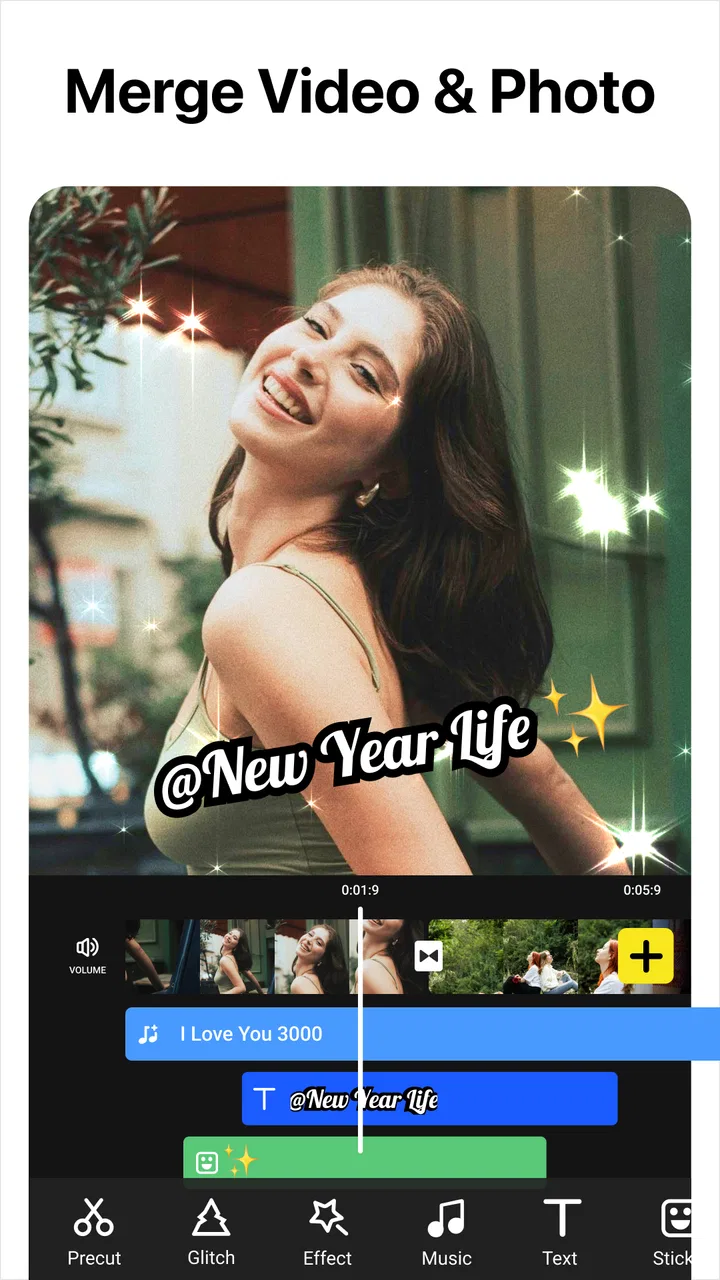
The Video Editor & Video Maker app provides a range of features including trimming, cutting, merging videos, adding transitions, and special effects. Users can also insert text, stickers, and apply filters to enhance their videos. Additionally, it supports multiple video formats and resolutions, ensuring compatibility with most devices.
02Is the app suitable for beginners or more advanced users?
The app caters to both beginners and advanced users. Its intuitive interface allows newcomers to easily navigate and perform basic edits. For advanced users, it offers more complex tools like multi-layer editing, chroma key, and advanced audio controls, allowing for detailed and professional-quality video creation.
03Does the app support 4K video editing and exporting?
Yes, the Video Editor & Video Maker app supports 4K video editing and exporting. This capability ensures that creators can produce high-resolution content that meets modern standards, making it ideal for platforms requiring high-quality video outputs, such as YouTube or professional presentations.
04Can I add music to my videos using this app?
Absolutely, the app provides a library of royalty-free music tracks and sound effects that users can add to their videos. It also allows users to import their own music files, giving them the flexibility to customize the audio to perfectly match their video content.
05Are there any costs or in-app purchases associated with using the app?
The app is free to download and use, but it offers in-app purchases for additional features and content. Users can access premium filters, effects, and tools by purchasing a subscription or one-time packages, enhancing their editing capabilities beyond the standard free offerings.
Pros
- Intuitive interface for easy editing.
- Offers a wide range of effects.
- Supports 4K video exports.
- Regular updates with new features.
- Compatible with most file formats.
Cons
- Some features require in-app purchases.
- Occasional lag on older devices.
- Heavy on battery usage.
- Ads can be intrusive at times.
- Limited free music options.

Video Editor, Maker -VideoCook
Gallery